Safe and Sound
A password manager that keeps Python behind a browser window. I wrote it to learn Python and Eel, and the page loader is what made it fast enough to use.
Contents
Safe and Sound is a password manager. A password manager is a program that remembers the passwords you use on websites, so you do not have to remember all of them.
I built it as an experiment. I wanted to practice Python, and I wanted to try a library called Eel. A library is a package of ready-made code. At the time I called this one PythonEEL. The idea was small: Python would do the real work, and the window would be a normal web page in the browser I already had. The page would use HTML for the structure, CSS for the look, and JavaScript for the clicks and the text.
That simple split was harder than I expected. Eel can open one web page. It cannot comfortably hold a whole program inside that one page. I had to give every screen its own file, and I had to write a loader that brings in one screen at a time. After that loader existed, the features worked, and they worked quickly.
The source is public on GitHub.
A short look at the window#
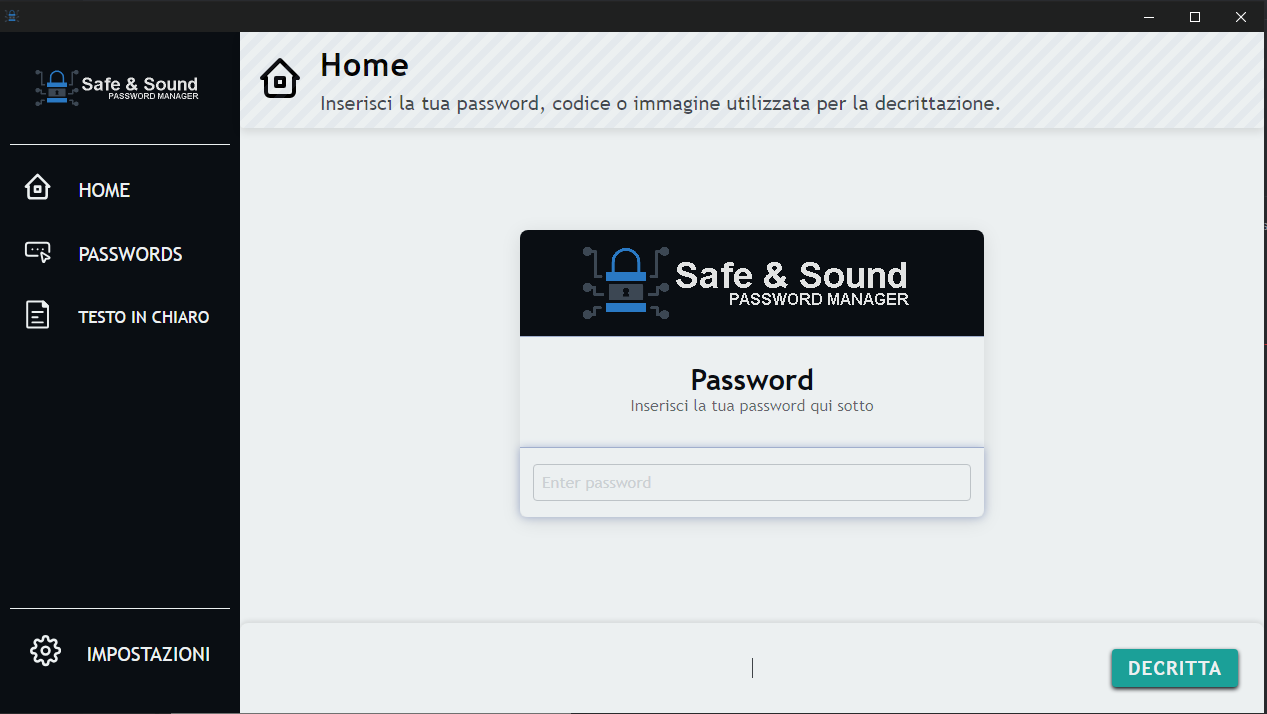
The clip below lasts about 33 seconds. I posted it on X on 6 February 2025, while the program was still in progress. It shows the browser window, the sidebar, and Home, including the choice to use an image file as the key. In that post I said the encryption was still on the way. The sections after this one describe the code as it stands now, with Fernet and the page loader included.
The same recording is on the original post.
What the three parts were supposed to do#
The first plan had three parts, and each part had one job.
The backend is the part you do not see. In this project the backend is Python. It reads the settings, saves the passwords, locks them, and unlocks them when a page asks.
The frontend is the part you do see. Here the frontend is the web page: the sidebar, the buttons, the forms, and the colors.
The middle part is JavaScript. In the diagram I call it middleware. Middleware means the code that carries a message from one side to the other. When you click a button, this JavaScript asks Python to do the work, waits for the answer, and puts that answer back on the page.
Python backend -> JS middleware
JS middleware -> HTML, CSS, JSA normal click shows the three parts working together. You press Passwords in the sidebar. The JavaScript does not open the password file itself. It sends a request to Python. Python reads the file, unlocks the saved values with the key from the Home screen, and sends the list back. The page then draws one row for each saved login.
The start of the program follows the same split. The file __main__.py is the first file Python runs. It reads config.ini, creates the two save files if they are missing, and then builds the window class in GUI.py.
GUI.py tells Eel that the web files live in the folder ui. Eel then opens index.html. The page is served on port 8080. A port is the numbered door the browser uses to talk to a program on the same computer. Eel is asked to behave like an application window, and Python waits for as long as that window stays open. The width and the height come from the settings file.
Eel gives the page a script called eel.js. That script is how the page sends a message to Python. A Python function can be called from JavaScript when it is registered for Eel. GUI.py and Config.py both register functions this way. The file that the pages actually use is ui/scripts.js.
index.html is only the frame. The sidebar is fixed. The large area beside it, marked content, starts empty. When the page has finished loading, scripts.js asks for home.html and places it in that area. Home is the first screen you see.
Two problems with Eel#
The features were finished, and they run well. I still would not choose Eel for another project. Two problems in this codebase are the reason.
The window was slow to open#
Eel opens Chrome, or a browser of the same family called Chromium, and uses that browser as the program window. Chrome normally starts with a profile. A profile is the folder where Chrome keeps extensions, history, saved passwords, and other tools. Loading that full profile is slow. Those tools are also a poor fit for a password manager. Chrome's own password saver, for example, tries to store and fill passwords, which is the job this program is already doing.
GUI.py prepares a clean start before it opens the window. It empties the folder c:\temp\Safe&Sound. It then starts Chrome with that folder as the profile, so your everyday Chrome profile stays untouched. It also passes a long list of browser arguments. An argument is a written instruction on the start command. The full list is the value cmdline_args in GUI.py. A few lines are enough to see the pattern.
--user-data-dirpoints Chrome atc:\temp\Safe&Sound, the folder that was just emptied.--disable-gputurns off the graphics hardware path. In my tests that path made the window slower to appear.--disable-extensionsand--disable-pluginsstop extra Chrome add-ons from loading.- A group of
--disable-password-managerarguments, together with the autofill arguments, tells Chrome to leave passwords alone. -safe-modestarts Chrome in a simpler mode.
The same file also chooses a host name, which is the name in the address of the window. It tries to reach https://www.google.com. If that request works, the host name is safeandsound. If the request fails, the host name is localhost. The port stays 8080 either way. The profile path is written in the Windows style, with a drive letter, so this startup is a Windows startup.
This list of arguments is the first reason I prefer not to use Eel again. Opening the window in a reasonable time took a lot of manual browser setup.
Each screen needed its own file#
Eel follows the same broad idea as Electron. Electron is a well-known way to build a desktop program: one process does the work, and the window is a web page. Eel tries to offer that shape with Python. The result is much more limited.
The limit that changed the design is easy to describe with an example. Suppose Python reads settings.html and the page inserts that HTML into the window. The CSS that came with the HTML still changes the look. A script tag inside the same HTML does not run. The buttons can appear, and still do nothing, because their JavaScript never starts.
Because of that, every screen is split into two files. The visible part is an HTML file in ui/pages. The behavior is a separate JavaScript file in ui/scripts. When you open a screen, scripts.js adds the matching script. When you leave, it removes that script by its id, so the next screen starts clean.
This is why the project grew an architecture. I began with one Python backend and one web frontend. The missing script behavior forced a folder of pages and a loader that fetches them one by one.
How one page is loaded#
Figure 2 is the design that fixed the slowdown. The three parts from the first plan are still there. The change is in the middle. The JavaScript now asks Python for one page, and Python reads that page from disk at the moment you need it.
Python backend -> JS middleware
JS middleware -> HTML, CSS, JS
JS middleware -> ui/pages/*.html
ui/pages/*.html -> HTML, CSS, JSThe function that does this is load_page_content, in ui/scripts.js. The Python side of the same step is get_page_content, in GUI.py. Here is the path with Settings as the example. You click Settings in the sidebar.
- If another page script is already on the window,
unloadScriptremoves it. The script has an id, so only that script is removed. - JavaScript asks Python for
settings.html. Python keeps only the file name. If the request also contains a folder, the folder is ignored. The page file is always read fromui/pages, and a request cannot point at a file outside that folder. Python then readsui/pages/settings.html. If the file is missing, it readsui/pages/404.htmlinstead and returns that. - The HTML comes back as text.
scripts.jschooses one behavior file. Home loadshome.js. Passwords and plain text both loadcredentials.js, because both screens are lists of saved rows. Settings loadssettings.js. - The same function reads the current language file, for example
ui/lang/en.ini, and replaces every label that carries a language id. It also loads the icons named on the page. - The finished HTML is placed in the
contentarea. The sidebar inindex.htmlstays in place. Only the main area changes.
The first call is the same function with home.html, because the main area is empty when the window appears. The sidebar has four links, and each link names its file: home.html, passwords.html, plaintexts.html, and settings.html.
This loader is what made the program feel fast. The window does not build Home, Passwords, Plain text, and Settings all at startup. It builds the one screen you asked for, then drops that screen's script when you move on.
Settings live in an ini file#
An ini file is a plain text file for settings. Each setting is a name, an equals sign, and a value. Related settings sit together under a title. config.ini is that file for Safe and Sound. utils/Config.py reads it with configparser, which is Python's standard tool for this format. __main__.py loads it before the window opens.
The group named APP holds the settings you would notice while using the program.
The window size is min_width_size = 1280 and min_hight_size = 720. The height name is missing the letter e. It really is written hight in the file. The program looks for that spelling, so the file keeps it. In everyday words, the window asks for at least 1280 pixels across and 720 pixels down.
algorithm = FERNET means the saved values are locked with Fernet, the method described later. auth_method = p means Home starts by asking for a password. The letter p stands for password. The letter c would mean the six-box pin, and the letter d would mean a file used as the key. language = en means the texts start in English.
Two more lines say where the data is saved. Logins go to data/storage/credentials.json. Short notes, called plain texts in the program, go to data/storage/plaintexts.json. Both paths start from the program folder.
A second group, named DEV, is for development. debug_mode = 1 turns logging on. The log file is named log.txt. The folder for that log starts empty.
The page can read these values. configuration_get returns one setting, or every setting if it is called with nothing. configuration_set changes one setting and writes config.ini again. When you pick a new language or a new algorithm in Settings, that is the function that saves the choice.
Config.py also contains default values inside the class, used as a starting point in code. Those defaults disagree with the file. The class says the algorithm is RSA, the unlock method is the capital letter P, and the width and height numbers are swapped. Once the file has been read, the file is the source the program uses: Fernet, a lowercase password, English, width 1280, and height 720.
The words on the screen live in ini files too#
The language files use the same text format, and they answer a different question. config.ini says which language you want. A file in ui/lang says what each sentence is in that language.
Take one label as an example. In ui/lang/en.ini the sidebar group contains a line sidebar.passwords = "Passwords". In index.html, the Passwords item is marked with data-lang-id="sidebar.passwords". That mark is the link between a place on the page and a line in the ini file.
When a page loads, loadLanguage in scripts.js fetches the file for the current language, for example lang/en.ini. parseINI reads the file line by line and splits each line at the equals sign. updateContentWithTranslations then finds every marked element and sets its text. The same step fills placeholders, such as the grey hint inside an empty input, when the element carries data-lang-placeholder-id.
If you change the language to Italian, the mark on the element stays the same. The text comes from it.ini instead of en.ini. updateLanguage in settings.js saves the new language with configuration_set, then calls load_page_content for the screen you already have open. The window stays open. Only the words change.
languages.json fills the language menu. The ids in that file are ar, de, en, es, fr, it, ja, pt, ru, and zh: Arabic, German, English, Spanish, French, Italian, Japanese, Portuguese, Russian, and Chinese. One name does not match its file. The menu calls Portuguese pt, while the file in the folder is pr.ini. A choice of Portuguese therefore looks for lang/pt.ini.
The English file is a good map of the interface, because every screen has a group. dict holds shared button words such as Save, Cancel, and Close. sidebar holds Home, Passwords, Settings, and Plain text. home holds the first screen, including the sentence that asks you to insert the password, passcode, or image used for decryption. settings, passwords, plaintexts, and credentials hold the rest.
How a saved password is locked#
Each locking method lives in its own file under src/ciphers. utils/Ciphers.py is the switch that calls the right file. The allowed names are listed as CryptoType in utils/Enum.py: AES, FERNET, BASE64, and NONE. The Settings screen shows a shorter menu: FERNET, BASE64, and NONE. A new install starts on FERNET, because that is the value in config.ini.
It helps to follow one saved login from the form to the file. You add a password for a site. The page calls add_credential in GUI.py and sends five pieces of information: which store to use, the algorithm name, the service, the username, and the secret.
The service is the site, for example example.com. The username is the account, for example ada@example.com. The secret is the password you want to keep. The program locks the username and the secret with the key that Home stored. The service is written exactly as you typed it. In add_credential the line that would lock the service is left inactive, as a comment, and the lines for the username and the secret are the ones that run. A comment is a note the program skips. Leaving the service readable makes the list easier to scan, and it also means the site name is visible in the save file.
The row is stored as JSON. JSON is a text format for a list of small objects. utils/DataParser.py writes that list. Each object has three fields: service, email_or_username, and value. Store number 0 is data/storage/credentials.json, the password list. Store number 1 is data/storage/plaintexts.json, the plain-text notes. Both stores use the same three fields. __main__.py creates either file when it is missing, so the first run starts from an empty list.
When you open the list later, get_credentials_data reads the JSON and unlocks the username and the secret with the same key. The service is already plain text, so it is left as it is. Password rows are then drawn from the template ui/components/password.html. Plain-text rows use ui/components/plaintext.html.
requirements.txt records the library versions used for this work. Eel is 0.18.1. The cryptography library, used by Fernet, is 44.0.0. PyCryptodome, used by AES, is 3.21.0.
Fernet, the method the program uses#
Fernet is the default. The code is in ciphers/Fernet.py, and it uses the cryptography library.
Your password is not used as the key directly. The function derive_key_from_text runs PBKDF2 with SHA256. In plain words, it mixes your password again and again, 100000 times, until it becomes a key of one fixed length. A salt is an extra value mixed into that process. An IV is a starting value used while the text is locked. In this file both the salt and the IV are constants, so they are the same every time. That is a real limit of the experiment. The details sit in Fernet.py for anyone who wants to read them.
AES, present in the code#
ciphers/AES.py uses PyCryptodome. It locks data with AES in a mode called EAX. Together with the locked text, EAX keeps a nonce and a tag. The nonce is a unique extra value for that operation, and the tag lets the program check that the text still matches what was saved. Ciphers.py knows how to call this file. The Settings menu does not offer AES, so a normal run uses Fernet, Base64, or no locking at all.
Base64 and RSA, taken from TheAlgorithms#
ciphers/Base64.py and ciphers/RSA.py both open with a credit to TheAlgorithms/Python. That repository is a public collection of Python examples. I adapted these two files from that work.
Base64 is on the Settings menu. It rewrites bytes as letters, numbers, plus signs, and slashes, so the value can live in a text file. Anyone who can read the file can reverse that rewriting. I kept it in the menu because it was useful while I was testing the screens. Fernet is the method that actually locks a password. Base64 is a format change.
RSA is the other adapted file. It sits in the cipher folder with the same credit. The running menu has no RSA choice, and CryptoType has no RSA name, so Ciphers.py never calls it. settings.js still contains a check for the value RSA. If that value were selected, the screen would show two fields: one for a public key file and one for a private key file. With Fernet, Base64, or NONE, those fields stay hidden. The matching settings in config.ini are pubkey_fpath and privkey_fpath, and both start empty.
NONE is the last menu choice. It saves the username and the secret without locking them. It is there so the screens can be tested. It is a weak choice for a password you care about.
How you open the passwords page#
The passwords screen does not ask for the key. Home does. Python remembers the result in GUI.Key until the program closes. The setting auth_method decides which control Home shows, and showInput in home.js applies that choice.
If the value is p, Home shows a password box. You type a password, for example a long private phrase, and you press the button labeled DECRYPT. The click runs updateKey. For a password, that calls updatePassword, which calls set_key when the box is not empty. set_key stores the text on the Python side.
If the value is c, Home shows the pin. The interface calls it a passcode. It is six small boxes, three, then a dash, then three more. You type one character in each box, and the page moves the cursor forward after each one. DECRYPT joins the six characters into one string. set_key runs only when that string is six characters long. If some boxes are still empty, the pin stays on the screen and Python does not store it.
If the value is d, Home shows a drop area. You drop a file on it, or you click and choose a file. The browser reads the file, turns the bytes into Base64 text, and set_key_base64 stores that text as the key. The DECRYPT button is hidden for this choice, because choosing the file is the action. open_file_dialog in GUI.py can do the same job from a Python file window and store the file bytes in GUI.Key.
The code also understands a fourth value, t. showInput treats t as "show the password, the pin, and the file area together". The menu in settings.html lists only password, passcode, and image, so t is available to the code and absent from the menu you see.
After the key is set, Passwords is a separate page. You click it in the sidebar. The link calls load_page_content with passwords.html. That file is ui/pages/passwords.html. The loader then adds credentials.js. Inside it, update_credentials_data is called with 0, the number of the password store. It asks Python for get_credentials_data with that same number. Python reads credentials.json, unlocks the username and the secret with GUI.Key, and returns the rows. The page copies password.html once for each row and fills in the service, the username, and the password.
Plain text is the same journey with different names. The sidebar loads plaintexts.html, the store number is 1, and each row is copied from plaintext.html.
This is the role of the password or the pin. Home is where you give the program the key. The passwords page is the dedicated screen that uses the key and shows the saved logins. The useful order is Home first, then Passwords. The sidebar will still open the passwords file on its own. The values come back in a readable form when GUI.Key is the key that was used to lock them.
What the program can do#
The finished program covers the job I set for it. It stores website logins and a second list of plain-text notes. It can lock those values with Fernet, rewrite them with Base64, or store them with no locking. It can take the key from a password, from a six-character pin, or from a file. It reads its window size, its language, and its algorithm from config.ini, and it reads every label from a language ini file.
It stays fast because of the loader in Figure 2. index.html is the frame that stays on screen. Each click brings one HTML page and one script, then removes that script on the way out. That dynamic loading is what made the interface quick after the early version felt heavy.
The two limits of Eel are still the ones in this article. The browser needs a long list of arguments before the window opens in a reasonable time. And only part of the Electron idea is available, so a script inside a loaded page never starts. The page system was built around that fact.
Where to read the code#
The paragraphs above name the file that holds each behavior. The tree is the same set of files, grouped as they are in the project. The repository is DoktorSAS/SafeAndSound.
src/
- __main__.pystarts the program
- GUI.pywindow and key
- config.inisettings
ciphers/
- Fernet.pydefault lock
- AES.pyin the code only
- Base64.pyTheAlgorithms
- RSA.pyTheAlgorithms
utils/
- Ciphers.pychooses the method
- Config.pyreads the ini file
- DataParser.pyreads and writes JSON
- Enum.pymethod names
ui/
- index.htmlthe fixed frame
- scripts.jsloads one page
pages/
- home.html
- passwords.html
- plaintexts.html
- settings.html
- 404.html
scripts/
- home.js
- credentials.js
- settings.js
components/
- password.html
- plaintext.html
lang/
- en.iniand the other languages
- languages.json